Showing posts with label Visual Studio. Show all posts

Sunday, July 06, 2008

Update Default Visual Studio 2008 Project Templates

To update existing Visual Studio project templates, follow the manual instructions here. Should you wish to change the default templates, they can be found at:

C:\Program Files\Microsoft Visual Studio 9.0\Common7\IDE\ProjectTemplates

I wanted to set TreatWarningsAsErrors to true by default for all class library projects. First precaution, I took a backup copy of the original zip file prior to unzipping the files.
Next step, the line below was added to the to the debug and release PropertyGroup sections of the extracted csproj file.

<treatwarningsaserrors>true</treatwarningsaserrors>

Then, I recompressed all the extracted files and copied the zip back to the ProjectTemplates directory, overwriting the original zip.
Finally, it is necessary to regenerate the templates as Visual Studio seems to load them from:

C:\Program Files\Microsoft Visual Studio 9.0\Common7\IDE\ProjectTemplatesCache

To regenerate the default templates, run devenv.exe /installvstemplates from a Visual Studio command prompt.

Thursday, November 09, 2006

Share Common Files in Visual Studio

Under normal circumstances, when you add an existing file to a project, Visual Studio makes a copy of the file, local to the project. This is good for isolating breaking changes, but not so good if you want to share a single copy of a file.

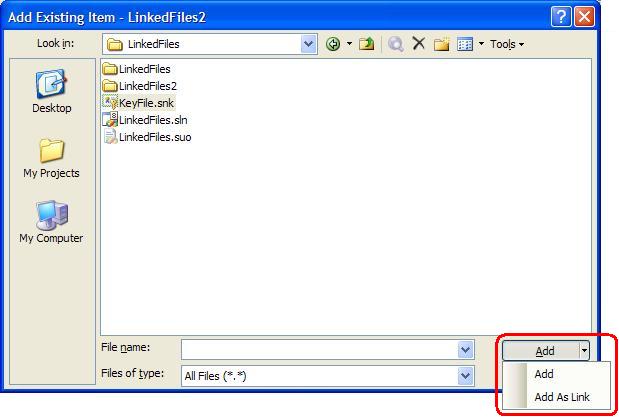
An alternative is to share common files, perhaps containing assembly info or a strong name key, that need to be referenced throughout your code base. To link files across projects by using the Add As Link context menu in the Add Existing Item dialog.

Once added, the linked file can be identified in Solution Explorer by the shortcut symbol at the foot of it's icon. The major benefit is that any changes saved to either the original or any linked file are replicated across the original and all linked files immediately.

Saturday, November 04, 2006

Avoid releasing ASP.NET applications with <compilation debug="true" /> using <deployment retail=”true”/>

I think most people are aware that running production ASP.NET applications with <compilation debug="true"/> is bad practice for a number of reasons but specifically because compilation takes longer due as batch optimizating is disabled and scripts and images downloaded from the WebResources.axd handler are not cached.

One of the great tricks I learnt at a Scott Guthrie session at TechEd in Sydney earlier this year, was that you can avoid the accidental deployment of applications with <compilation debug="true"/>.

Specifically, by setting the <deployment retail="true"/> switch within your machine.config file, you will disable the <compilation debug="true"/> switch, disable the ability to output trace output in a page, and turn off the ability to show detailed error messages remotely across all ASP.NET applications on the server.

<configuration>
<system.web>
<deployment retail="true/">
</system.web>
</configuration>


It's worth noting that regardless of the increased memory footprint, adding debug symbols to release assemblies can be extremely useful as it allows detailed stack trace and line error messages to be logged when exceptions occur. It's important to note that the generated pdb files must be be deployed with the assemblies for the additional debug information to be available.


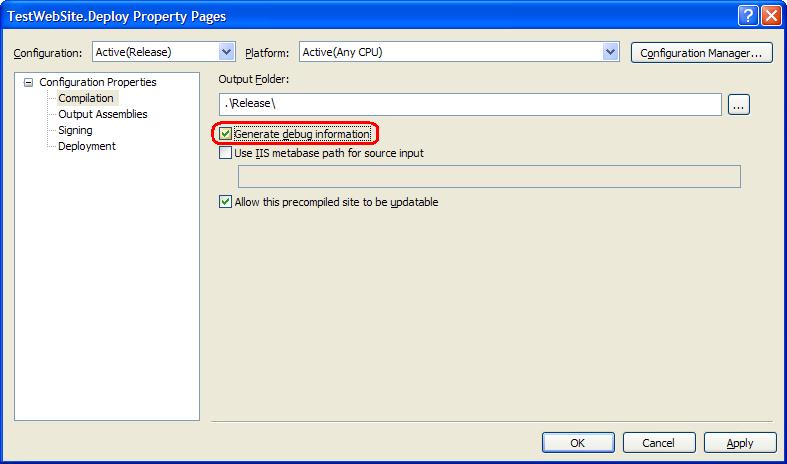
To add debug symbols to a Web Deployment Project

  • open the project Property Pages
  • check the Generate debug information checkbox

Web Deployment Project - Generate Debug Symbols

To add debug information to a Web Application Project or Class Library:

  • open the project Property Pages
  • click the Build tab
  • click the Advanced button
  • select pdb-only in the Debug info dropdown
  • click the OK button

Web Application Project - Debug Info

Monday, October 16, 2006

Break When an Exception is Thrown

A colleague of mine recently had an issue with a .NET exception that was caught in a try catch block, not reported and subsequently caused issues. Make sure you have the Exceptions... option in the Debug menu. If not, add it using the Customize... option in the Tools menu. Then, to break whenever an exception is thrown follow these simple steps -

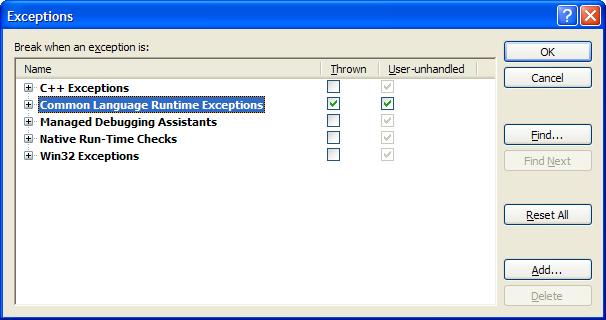
  1. On the Debug menu, click Exceptions...
  2. In the Exceptions dialog box, select Thrown for Common Language Runtime Exceptions.
It's possible to limit the exception types by expanding the tree and checking specific options. Pretty neat I thought.